

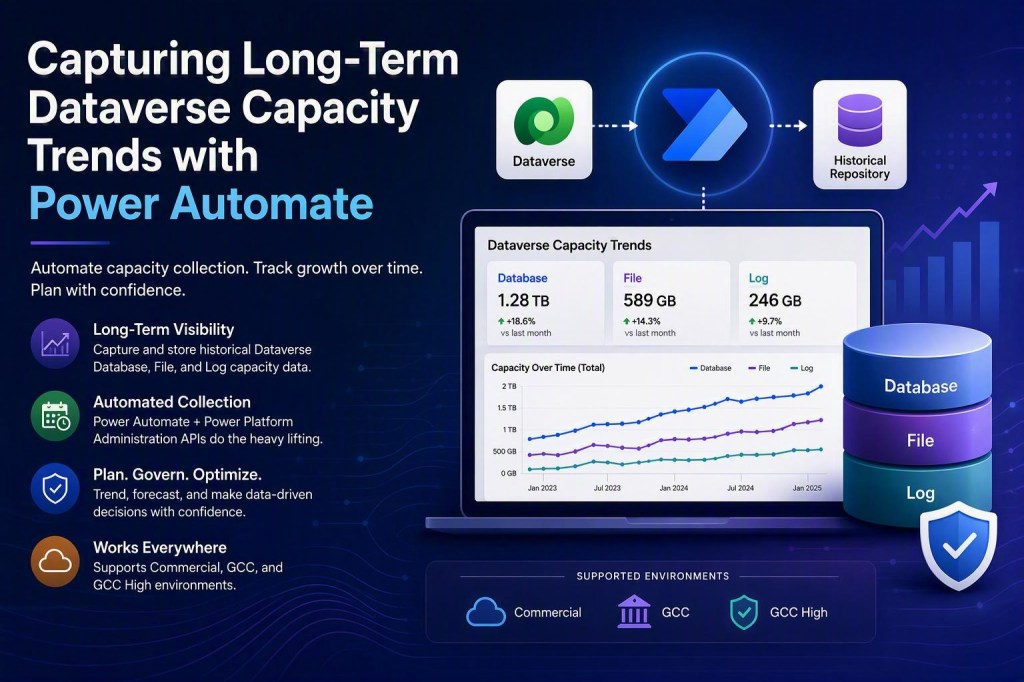
Organizations frequently need years of Dataverse capacity history for forecasting, budgeting, governance, audit reporting, and capacity planning. However, the Power Platform Admin Center currently provides only a limited 12-month historical view.
TL;DR
Need long-term Dataverse capacity reporting?
This Power Automate solution captures historical Database, File, and Log capacity data using Power Platform Administration APIs, supports Commercial, GCC, and GCC High environments, and enables long-term trending, forecasting, governance reporting, and capacity planning. With automated data collection, tenant-wide aggregation, intelligent unit conversion, configurable Dataverse for Teams filtering, and built-in resiliency, organizations can build a historical capacity repository that extends far beyond the native reporting capabilities of the Power Platform Admin Center. Centralized configuration settings and enhanced error handling simplify deployment, troubleshooting, and ongoing operational support.
Download the Solution
If your organization needs visibility into long-term historical Dataverse storage growth, this solution can provide a strong starting point.
I’ve packaged the Power Automate solution and made it available for download so that architects, administrators, and platform teams can adapt it to their own environments. The solution currently includes a manually triggered Instant Cloud Flow for ease of deployment and testing, but it can be easily converted into a Scheduled Cloud Flow to support automated historical data collection.
Whether you’re operating in Commercial, GCC, or GCC High, the solution can help establish a repeatable process for collecting and preserving historical capacity information.
Download the solution and begin building your own long-term reporting strategy today.
If you extend the solution with additional capabilities such as Power BI dashboards, forecasting, alerting, governance reporting, automated notifications, or capacity planning analytics, I’d love to hear how you’ve adapted it for your organization.
Table of Contents
- Executive Summary
- Why Historical Capacity Data Matters
- Solution Overview
- Prerequisites and Permissions
- How It Works
- Automating Capacity Collection
- Enhancements Beyond the Original Concept
- Cloud Environment Considerations
- Future Enhancement Opportunities
- Business Value
- Lessons Learned
- Sample Output
- Acknowledgements
Executive Summary
Organizations across Commercial, GCC, and GCC High frequently need historical Dataverse capacity reporting that extends beyond what is currently available – only showing the previous 12 months – in the Power Platform Admin Center.
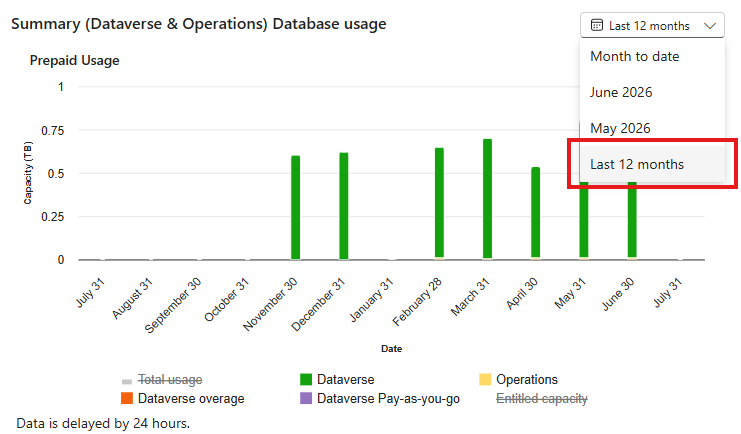
To address this gap, I developed a Power Automate solution that leverages the Power Platform Administration APIs to capture tenant capacity snapshots over time, enabling long-term storage trending, forecasting, governance reporting, capacity planning, and executive visibility.
The solution collects Database, File, and Log capacity information across environments, calculates tenant-wide totals, automatically converts storage values into human-readable units, and incorporates robust error handling through a Try/Catch framework. To improve reporting accuracy and flexibility, the solution also includes configurable filtering for Dataverse for Teams environments. Because Dataverse for Teams environments do not directly contribute toward Dataverse tenant capacity entitlements in the same manner as standard Dataverse environments, the solution defaults to excluding them from reporting while allowing administrators to enable their inclusion when desired.
To simplify deployment and operational support, the solution includes centralized configuration variables that allow administrators to define the Power Automate environment URL and flow URL in a single location. These values are leveraged throughout the error handling framework to provide direct links to the environment and flow when exceptions occur, reducing troubleshooting effort and accelerating issue resolution.
While the solution is delivered as a manually triggered Instant Cloud Flow for ease of deployment, testing, and demonstration, it is designed to be converted into a Scheduled Cloud Flow for automated historical data collection. The solution supports Commercial, GCC, and GCC High environments and can be extended to store historical data in Dataverse, SharePoint, SQL Server, Azure Storage, or Power BI for advanced reporting, forecasting, governance initiatives, and long-term analytics.
This approach provides organizations with a repeatable, configurable, and cloud-agnostic framework for building and maintaining their own long-term Dataverse capacity reporting strategy while overcoming the historical reporting limitations of the Power Platform Admin Center.
Why Historical Capacity Data Matters
One of the more common questions I hear from Power Platform administrators is:
“How can I report on Dataverse capacity growth over multiple years when the Power Platform Admin Center only provides a limited historical view?”
Whether you’re operating in Commercial, GCC, or GCC High, the challenge is the same. Organizations often need historical storage reporting for capacity planning, budgeting, governance reviews, audits, forecasting, and executive reporting. Unfortunately, there is currently no native capability within the Power Platform Admin Center that enables organizations to maintain multi-year Dataverse capacity history or perform long-term trend analysis.
Recently, I worked with a customer facing this exact challenge. The business needed historical capacity reporting that extended well beyond the data available through the native administrative experience. During my research, I came across Allan De Castro’s article, Leverage the Power Platform API to Create a Capacity Report, which provided a solid foundation for solving the problem.
Building on that concept, I developed a Power Automate solution that leverages the Power Platform Administration APIs to capture and preserve Dataverse capacity snapshots over time. The solution supports long-term reporting, forecasting, governance initiatives, and executive visibility while incorporating additional enhancements focused on usability, resiliency, reporting accuracy, configurable Dataverse for Teams filtering, operational supportability, and compatibility across Commercial, GCC, and GCC High environments.
Most organizations monitor their current storage consumption but lack visibility into how storage usage changes over time.
That becomes a problem when leadership starts asking questions such as:
- How fast is our Dataverse storage growing?
- Which environments are consuming the most capacity?
- When are we likely to exceed our current allocation?
- How much additional capacity should be budgeted next year?
- Can we provide historical storage reporting for governance, compliance, or audit purposes?
While the Power Platform Admin Center provides valuable capacity information, it is not intended to be a long-term historical repository. If your organization needs multi-year trend analysis or forecasting, a custom approach is required.
Solution Overview
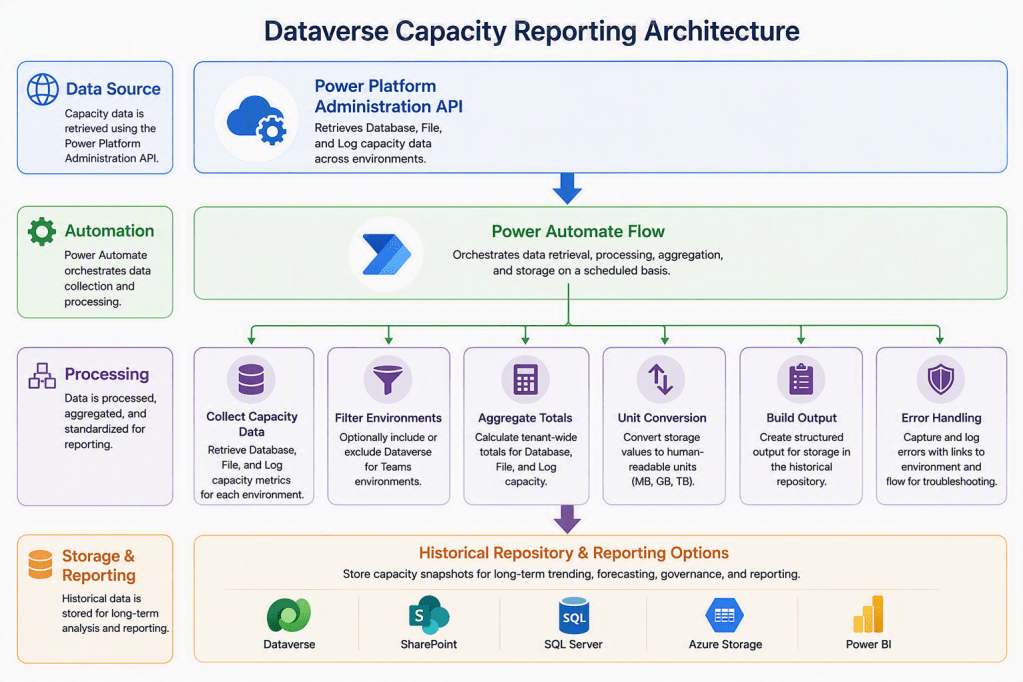
The solution utilizes the Power Platform Administration APIs and Power Automate to periodically collect and store capacity data across your tenant.
When configured with the appropriate administrative permissions, the flow captures capacity information across the tenant, including:
- Dataverse Database capacity
- Dataverse File capacity
- Dataverse Log capacity
By running on a recurring schedule, organizations can create their own historical data repository and maintain trending information for as long as needed.
The solution is cloud-agnostic and can be implemented in:
- Commercial
- GCC
- GCC High
This makes it a practical option for organizations regardless of their Power Platform cloud deployment model.
Architectural Diagram
Solution Configuration
To simplify deployment and ongoing maintenance, the solution centralizes key configuration settings into variables defined at the beginning of the flow. Administrators can control whether Dataverse for Teams environments are included in reporting and configure direct links used by the error handling framework for troubleshooting and operational support.
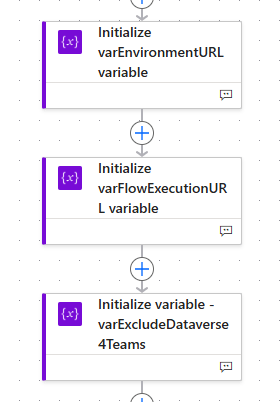
| Variable | Purpose |
| varEnvironmentURL | Direct link to the Power Automate environment. Ensure this URL is pointing to the correct domain based on your tenant’s cloud. |
| varFlowExecutionURL | Direct link to the flow used for troubleshooting and support activities |
| varExcludeDataverse4Teams | Controls whether Dataverse for Teams environments are excluded in reporting. Default: True |
Flow Processing Overview
Before diving into the implementation details, the following diagram illustrates the high-level processing sequence performed by the solution.

Prerequisites and Permissions
Before implementing this solution, it is important to understand how permissions impact the data returned by the Power Platform Administration APIs.
The flow retrieves capacity information based on the permissions of the account used by the Power Platform connection. If the flow runs under a standard user account, the API will only return information for environments that the user has access to.
To retrieve and report on capacity across the entire tenant, the account used by the flow should be assigned one of the following Microsoft Entra ID administrative roles:
- Power Platform Administrator
- Dynamics 365 Administrator
- Global Administrator
Without one of these roles, the data returned by the API will be limited to the environments accessible to the authenticated user, which can result in incomplete reporting and inaccurate tenant-wide capacity calculations.
For organizations intending to use this solution for enterprise reporting, capacity planning, governance reviews, executive dashboards, or audit support, I recommend using a dedicated service account that has been assigned one of the administrative roles listed above.
Important: If the flow appears to be missing environments or the calculated totals are lower than expected, verify the permissions associated with the Power Platform connection. In many cases, this behavior is caused by the account not having sufficient administrative privileges to enumerate all environments within the tenant.
How It Works
At a high level, the solution performs the following steps:
- Retrieves the list of environments within the tenant.
- Collects capacity information using Power Platform Administration APIs.
- Separates Database, File, and Log capacity metrics.
- Aggregates tenant-wide totals.
- Converts raw values into human-readable measurements.
- Generates a reporting-ready dataset.
- Produces structured output for downstream reporting and analysis.
- Handles failures through centralized error management.
This approach allows organizations to schedule recurring collection of capacity information and retain historical records indefinitely.
Automating Capacity Collection
The solution download includes an Instant Cloud Flow configured with a manual trigger. This was done intentionally to simplify deployment, testing, troubleshooting, and demonstration of the solution.
For production use, however, I recommend converting the flow to a Scheduled Cloud Flow that executes at a recurring interval appropriate for your organization’s reporting requirements.
Common scheduling options include:
- Daily collection for detailed trend analysis
- Weekly collection for operational reporting
- Monthly collection for long-term forecasting and capacity planning
The optimal schedule depends on how frequently your organization’s storage consumption changes and the level of historical granularity you want to preserve.
Because the solution captures a point-in-time snapshot of tenant capacity, scheduling the flow on a recurring basis allows you to build a historical dataset that can be retained indefinitely. Over time, these snapshots can be used to identify storage growth trends, support forecasting activities, and provide reporting far beyond the historical views available in the Power Platform Admin Center.
Organizations looking to extend the solution further may choose to pair a Scheduled Cloud Flow with long-term storage options such as Dataverse, SharePoint, SQL Server, Azure Storage, or Power BI to create a comprehensive capacity management and reporting solution.
Enhancements Beyond the Original Concept
While Allan’s original implementation provided an excellent starting point, I wanted to enhance the solution to make it more suitable for production-style deployments and broader customer scenarios.
Intelligent Capacity Unit Conversion
Raw capacity values returned from APIs are not always easy to consume.
To improve readability, the solution automatically converts storage values into the most appropriate display unit, such as:
- MB
- GB
- TB
This makes reports easier to understand and eliminates the need for manual calculations.
Tenant-Wide Aggregation
In addition to environment-level reporting, the flow calculates total consumption across the entire tenant for:
- Database capacity
- File capacity
- Log capacity
This provides administrators with a quick view of overall platform utilization.
Improved Data Processing
The flow includes data transformation logic that:
- Sorts environments
- Filters storage categories
- Structures output consistently
- Creates reporting-friendly datasets
These enhancements make the output easier to consume in reporting and analytics solutions.
Configurable Dataverse for Teams Filtering
One enhancement I incorporated was the ability to optionally include or exclude Dataverse for Teams environments from the reporting output.
While Dataverse for Teams environments are surfaced through the Power Platform Administration APIs, they do not directly consume Dataverse database, file, and log capacity entitlements in the same manner as standard Dataverse environments. As a result, including them in tenant-wide capacity reporting may not align with an organization’s reporting objectives.
To address this, the solution includes a configurable variable that allows administrators to determine whether Dataverse for Teams environments should be included in the reported results.
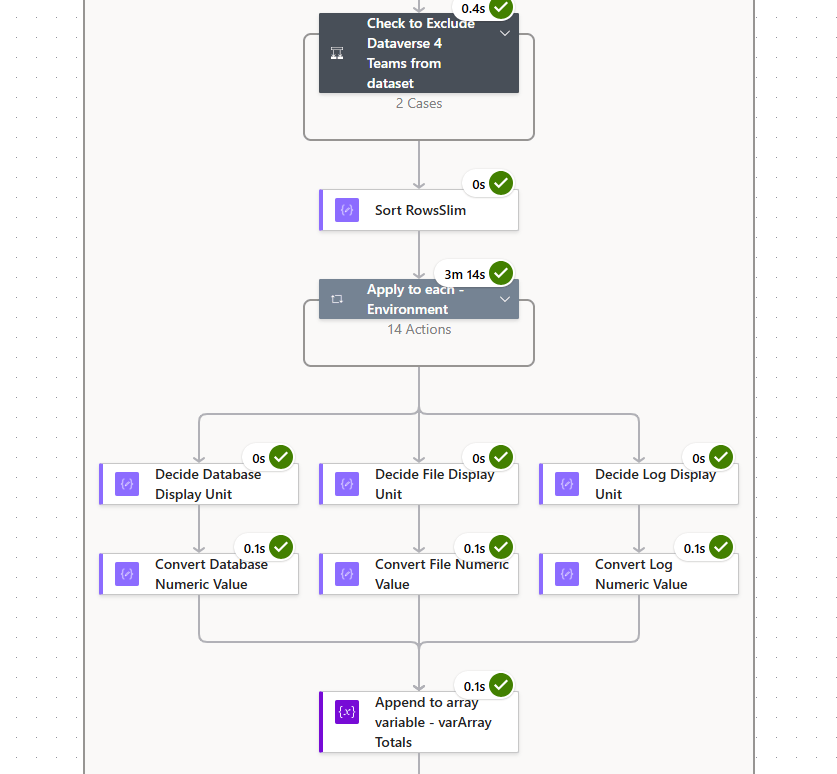
By default, the solution excludes Dataverse for Teams environments to provide reporting that more closely aligns with tenant capacity planning and entitlement management scenarios. Organizations that wish to track these environments can simply modify the configuration setting without requiring any changes to the underlying flow logic.
This approach provides flexibility while maintaining consistency across Commercial, GCC, and GCC High implementations.
Error Handling and Resiliency
Many proof-of-concept solutions work well until something unexpected occurs.
To improve operational reliability, the solution incorporates a Try/Catch pattern and centralized configuration settings that streamline troubleshooting and support activities.
Administrators can define the Power Automate environment URL and flow execution URL through configuration variables located at the beginning of the solution. When an error occurs, these variables are utilized by the error handling framework to provide direct navigation links to the affected environment and flow.
This approach reduces troubleshooting time, improves supportability, and allows operational teams to quickly investigate and resolve issues without needing to manually locate the relevant Power Automate resources.
These enhancements become particularly valuable when the flow is configured to run on a recurring schedule.
Cloud Environment Considerations
The solution was designed and validated to work across Commercial, GCC, and GCC High environments.
While the overall approach remains consistent regardless of cloud, certain endpoint and configuration details may vary depending on the deployment environment. During development, particular attention was given to ensuring compatibility with sovereign cloud environments while maintaining support for Commercial deployments.
It is important to note that the business problem itself is not unique to any specific cloud. Organizations across all Power Platform offerings face the same challenge of needing historical capacity insights that extend beyond what is natively available today.
Future Enhancement Opportunities
The current implementation provides a strong foundation, but organizations can easily expand on it based on their reporting requirements.
Some possibilities include:
- Storing historical snapshots in Dataverse
- Writing capacity records to SharePoint Lists
- Storing results in Azure Storage
- Writing data to SQL Server
- Building Power BI dashboards
- Creating forecasting models
- Generating automated storage alerts
- Supporting executive reporting and governance reviews
- Implementing automated notifications when capacity thresholds are reached
- Building trend and growth-rate analytics for capacity planning
Because the data is collected through automation, the solution can evolve into a comprehensive capacity management platform tailored to your organization’s needs.
Business Value
Proactive capacity management is significantly easier than reactive capacity management.
By collecting and preserving storage data over time, organizations gain the ability to:
- Identify growth trends early
- Improve budgeting accuracy
- Forecast future storage requirements
- Support governance initiatives
- Simplify audit and compliance reporting
- Make data-driven licensing decisions
Historical data transforms storage reporting from a point-in-time snapshot into a strategic planning tool.
Lessons Learned
One of the biggest lessons from this engagement was that many organizations assume historical Dataverse capacity reporting exists somewhere within the platform and simply needs to be enabled. In reality, while the Power Platform Admin Center provides valuable capacity insights, it is not designed to serve as a long-term historical repository for capacity trending and forecasting.
Another important lesson was that permissions matter. During testing, it became clear that the completeness of the reported data is directly tied to the permissions assigned to the account used by the Power Platform connection. Without the appropriate administrative roles, organizations may unknowingly collect only a partial view of their tenant’s capacity usage and make decisions based on incomplete information.
I also found that raw capacity data, while technically useful, is often difficult for stakeholders to interpret. Converting values into human-readable units, calculating tenant-wide totals, and presenting the information in a structured format significantly improves the usefulness of the data for administrators, platform owners, leadership teams, and governance stakeholders.
Perhaps the most valuable takeaway is that organizations should begin collecting historical capacity data before they believe they need it. Forecasting, budgeting, governance reviews, storage optimization initiatives, and executive reporting all become easier when there is a meaningful historical dataset available for analysis. Building that history retroactively is not possible if the data was never captured in the first place.
By implementing a lightweight automated collection process today, organizations can establish a historical baseline that becomes increasingly valuable over time and supports more informed decisions about storage growth, capacity planning, and platform governance.
Important: Historical reporting begins only after data collection starts. This solution cannot recover historical capacity information that was not previously captured.
Sample Output
The solution produces reporting-friendly output that includes:
- Environment name
- Environment Id
- Environment type
- Database capacity consumed
- File capacity consumed
- Log capacity consumed
- Tenant-wide storage totals
Rather than returning raw numerical values from the API, the flow automatically converts storage measurements into human-readable units such as MB, GB, or TB based on the size of the value being reported.
This makes the output immediately consumable by administrators, platform teams, and business stakeholders without requiring additional transformation or calculations.
Acknowledgements
A special thank you to Allan De Castro for publishing the original concept and implementation guidance that inspired this solution. His article provided the foundation for this enhanced implementation and helped accelerate development of a solution that can benefit organizations across the Power Platform community.
Reference: Leverage the Power Platform API to Create a Capacity Report by Allan De Castro.

Leave a comment