


Summary
DevOps has become increasingly ingrained into our Power Platform project lifecycle. When I first started this project in 2020, the platform relied on tools used by traditional IT and Operations teams. These tools exist today and continue to provide immense benefits for organizations.
Since my initial writings, the platform has released Pipelines in Power Platform. As referenced in the overview page, “Pipelines in Power Platform aim to democratize application lifecycle management (ALM) for Power Platform and Dynamics 365 customers by bringing ALM automation and continuous integration and continuous delivery (CI/CD) capabilities into the service in a manner that’s more approachable for all makers, admins, and developers.”
In this article, we will focus on monitoring deployments using Pipelines in Power Platform, otherwise known as Power Pipelines. Understanding of Power Pipelines is assumed before we continue. If you are new to Power Pipelines, please review the references for an overview and how to set up pipelines for more information.
Deployment Stage Monitoring
Environments have stages consisting of previous and targeted deployment environments. Think of a stage as giving organizations the ability to add checks and approvals before and after deploying to an environment. An example would be moving changes from a developer’s environment into a test environment for quality assurance. Before moving the changes, approvals need to happen, notifications need to be sent out to relevant stakeholders, automated tests need to run successfully and so on.
Power Pipelines offers triggers that can be used to help perform these actions. Triggers include:
- When an approval process is started
- When an approval request has been approved or denied
- When a deployment is about to begin, otherwise known as a pre-deployment
- When a pre-deployment is finished
- When the actual deployment starts
- When the actual deployment finishes
The Extend Pipelines documentation goes into more detail into specific properties for each of these events. Properties are useful for providing additional context. For instance, if an approval was denied, why so and what are any comments provided. It also discusses configuring when these Power Automate flows should trigger. For example, maybe certain pipelines or solutions should only go through an approval process. As part of the Extend Pipelines documentation, a sample solution is provided.
Approval and Pre-Deployment Note
Approvals have been a long-standing tradition for deployments. Ensuring all relevant parties are not only aware of roles and responsibilities but available during deployment is critical. As I wrote about in 2020, the Power Platform has long integrated with platforms such as Azure DevOps allowing approval engines to be injected.
Pre-Deployment can provide immense benefits for organizations who require additional validation and testing. Consider the following example:
Deploying a solution containing the core data model for your environment. This solution could take hours to import. Including pre-processing to check solution versioning, solution layering, solution history is critical. I’ve seen many deployments derail due to the simple fact of another solution, be it from the organization or Microsoft blocking the deployment of the desired solution. Using pre-deployment events can help you attempt to validate conditions such as these and mitigate failures.
Using the Sample Solution
Microsoft has provided a sample solution (https://aka.ms/DownloadPipelinesExtensibilitySamples) that includes Power Automate flows that will either send approvals or emails based on each of the events in the list above. Here is an image showing each of the events in Power Automate.
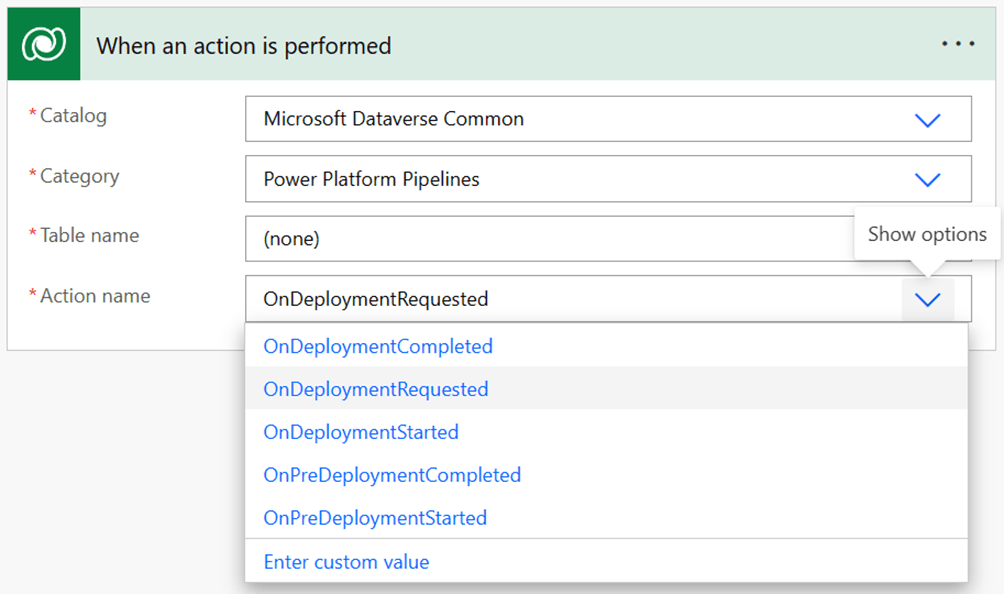
These samples are a good way to begin adding these checks and validations. I would suggest at a minimum using the OnDeploymentStartedSample and OnDeploymentCompletedSample Power Automate flows. Both of these show a simple example of when a deployment starts or finishes, send an email to someone.
On Deployment Completed:
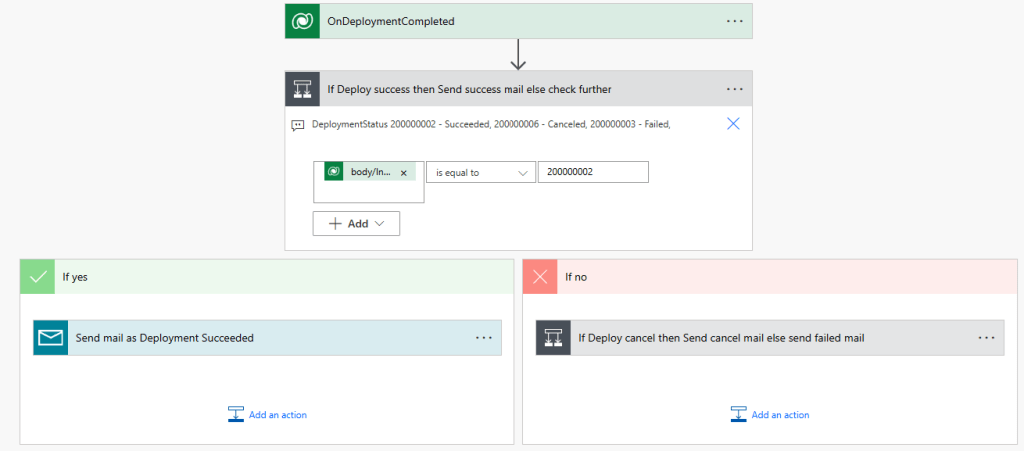
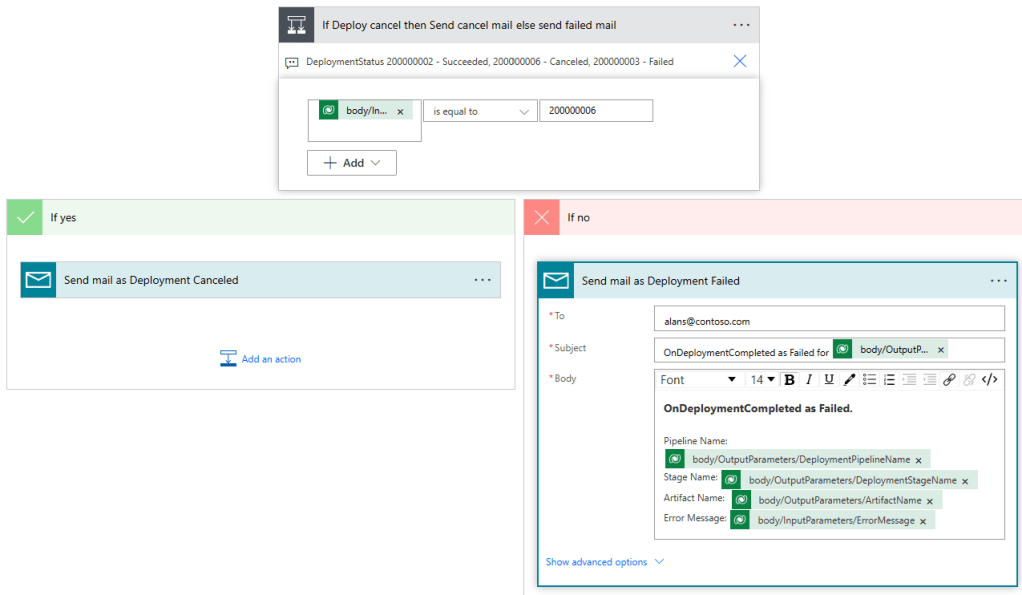
This Power Automate flow checks if a deployment was successful or not. If successful, or yes in the image above, it sends an email. If not, if checks to see if the deployment was cancelled or failed.
Failed Deployment Email:
Extending the Sample Power Automate Flows
Now that the samples have been installed and explored, consider how they can be extended. As mentioned in the note above, considerations on orchestration of stakeholders, validation through testing and monitoring how the deployment are all examples of how the samples can be extended.
Note on Automating Testing in Power Platform Pipelines
Testing is out of scope for this particular article but my colleague Suparna Banerjee has a step by step video for automating testing with Power Platform Pipelines. She includes helpful guides and samples in the description of the video. I encourage you to watch the video as you consider adding testing to your Power Pipelines.
Extending into Monitoring Power Pipelines
As discussed, the samples provide a simple way to quickly receive notifications when an event occurs, such as a deployment completing. With that said, leveraging Power Automate and the connectors provided, additional insights can be easily collected and reported on.
Consider the following to orchestrate deploying multiple solutions:
A deployment relies on an orchestration of multiple managed solutions. The completion of a single solution imported into the target environment should trigger the next solution in the deployment to begin. Leveraging the deployment completed event, organizations analyze the artifact delivered in the release record to trigger the deployment of the next solution using the Dataverse connector.
Or the following to generate release notes:
Once a deployment has finished, the organization relies on deployment and artifact release notes to be generated and sent out to users and operations teams. Using the deployment completed event along with notes on the release will let users know about new features for them to try out. Operations teams can receive a detailed report on the timing of the release, including benchmarks against previous deployments. Copilots such as GitHub Copilot can provide robust information about commits and pull requests in the report.
Resiliency Considerations
I’ve written several articles detailing how to monitor ALM processes. These articles are designed for individuals familiar with using platforms such as GitHub or Azure DevOps. They provide insights into orchestrating deployments, monitoring for failures or anomalies and writing robust release notes.
With Power Pipelines, the deployment process has never been easier. That said, organizations must continue to be prepared for outages or failures. The sample solution provides a simple notification as noted above. However, this sample relies on a single email address and sends an email with minimal information.
Many scenarios can derail deployments. Depending on resource availability and expertise, different steps can be taken to harden your ALM strategy using Power Pipelines.
At a minimum, I suggest you install the sample solution and configure the email to be sent to a distribution list and/or a Microsoft Teams channel with the relevant stakeholders notified. The relevant stakeholder must include the person who initiated the deployment and any approvers. The email must include the error message, which environment the deployment failed on, what solution failed and a link to the failed pipeline run.
Introduction Level
- Email on Failed or Cancelled Deployments.
- Email contains:
- Error Message
- Environment Stage
- Solution Name
- Initiator
As you progress, add validations such as running a code analysis engine and pre-deployment checks if a solution is currently being imported. Managed Environments and Approvals can help add guard rails for code changes. The solution history table provides the current status of imports, allowing checks for before deploying a solution.
Advanced Level
- Run Solution Checker on export of solution.
- Add Solution Checker violation warnings for targeted environments.
- Add Approvals for staged deployments.
- Add Pre-Deployment validation of existing imports via the Solution History table.
Once these basic validations have been added, consider adding automated testing and business continuity drills into the deployments. Add release notes including timings of deployments, approval personas and rollback instructions.
Experienced Level
- Automated testing across all stages with validation and reporting.
- Business continuity drills across first party and third-party integration.
- Automated release notes on completed deployments sent to business stakeholders.
- Detailed operational reports sent to internal teams.
- Rollback and failover strategies in place.
Finally, for a fully autonomous approach, leverage APIs and CLIs to compare solution component layering, UI testing for validation and monitoring and Copilot agents for triggering external systems and notifying relevant stakeholders.
Expert Level:
- Leverage Power Platform API and CLI commands for solution comparison upon code commits.
- Complete source control integration.
- Recording and documenting UI simulation tests used for exploratory and regression testing.
- Autonomous agents working on behalf of testers to run tests, explore results to modify and stage deployments.
Next Steps
In this article we discussed Pipelines for the Power Platform. We discussed deployment stages, scenarios for adding checks and validations and Microsoft provided examples. We ended with considerations for resiliency and steps to mature your resiliency strategy with Power Pipelines.
If you are interested in learning more about specialized guidance and training for monitoring or other areas of the Power Platform, which includes a monitoring or ALM workshop, please contact your Microsoft representative for further details.
Your feedback is extremely valuable so please leave a comment below and I’ll be happy to help where I can! Also, if you find any inconsistencies, omissions or have suggestions, please go here to submit a new issue.

Leave a comment