

One of the challenges for staying under a storage quota has been that there is no way to manage or set limits to what is consumed. There is now a new feature in PPAC that allows you to manage capacity between your environments. This will allow administrators to effectively and proactively manage that environments have the capacity that they need. To locate the ‘allocate capacity for an environment‘ feature:
- Sign in to the Power Platform admin center.
- In the navigation pane, select Resources > Capacity.
- On the Capacity page, select the Datavese tab.
- Select the environment for which you want to allocate capacity.
- Select the Allocate capacity button, located above the environment list. The Allocate capacity pane is displayed on the right side of the page.

- In the Allocate capacity pane, view the currently allocated and consumed capacity for the environment.
- Allocate capacity by entering the desired value in the Database, File, and Log fields. Ensure the capacity values are positive integers and don’t exceed the available capacity displayed at the top of the panel.
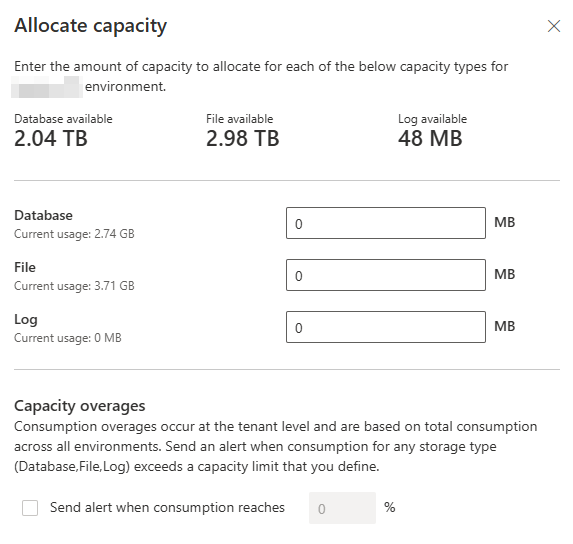
- Opt-in to receive daily email alerts sent to tenant and environment admins when the consumed capacity (Database, Log, or File) reaches a set percentage of the allocated capacity.
- Select Save to apply the changes.
I hope learning about this new feature helps you manage storage capacity in your environments. If you need help reducing storage consumption within your Dynamics 365 Finance & Supply Chain Management application, we do offer a Database Storage Capacity Assessment which can be viewed on our Service Offering blog. Please click the link to view the data sheet which will describe the objectives and deliverables of that assessment if interested.

Leave a comment