

In the ever-evolving world of technology, the need for efficient and seamless data migration cannot be overstated. Whether you’re upgrading your systems, moving to a new environment, or simply looking to keep your data intact during a transition, understanding how to properly migrate your data is crucial. This is particularly true for organizations utilizing Microsoft’s Center of Excellence (CoE) starter kit, where audit logs play a vital role in maintaining operational transparency and efficiency.
This blog post aims to provide a step-by-step guide on how to migrate audit logs from one CoE installation to another. This process is not only applicable to audit logs but also extends to migrating data across Dataverse tables in different environments. By following this guide, you can ensure that your audit logs data remains intact during the migration process, thereby preserving the integrity of your operations and minimizing potential disruptions.
The Problem: Preserving Audit Logs During Migration
Audit logs are an essential component of any CoE installation. They provide a detailed record of application launch activities within the system, offering valuable insights into user behavior. However, during the migration of a CoE installation from one environment to another, these audit logs can often be overlooked or lost in the process.
The loss of audit logs during migration poses several challenges. Not only does it result in a loss of historical data, but it can also impact compliance requirements and hinder the ability to conduct thorough investigations into past activities. Therefore, preserving these logs during migration is of utmost importance.
The Solution: A Step-by-Step Guide to Migrating Audit Logs
To address this issue, we’ve put together a comprehensive guide that outlines the steps required to migrate audit logs from one CoE installation to another.
Step 1: Access the Old CoE Instance
Start by navigating to the environment that contains the old CoE starter kit instance with the information you want to migrate. You can do this by opening make.powerapps.com.
Step 2: Copy the Web API Endpoint
In the upper right corner of your screen, select the gear icon and then choose Developer resources. This will allow you to copy the Web API endpoint to your clipboard. Once you’ve done this, exit that window.

Step 3: Navigate to the New CoE Instance
Next, navigate to the new environment that contains the new CoE instance where you want to migrate the information.
Step 4: Create a New Dataflow
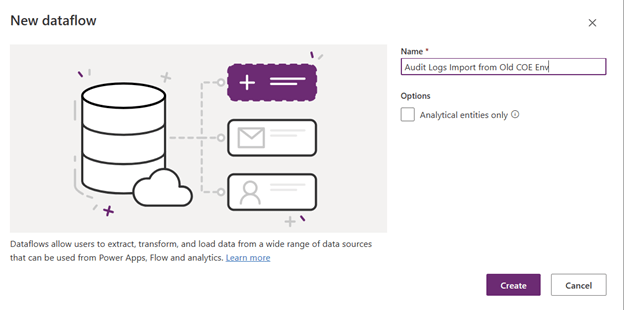
On the left side of your screen, select Dataflows and then choose New Dataflow. Name your dataflow based on the table you want to migrate over. For example, if you’re migrating the audit logs table, name it “Audit Logs Import from X Environment,” where X is the name of the environment, you’re copying information from. Then select Create.
Step 5: Set Up Power Query
A Power Query window will open. Here, select OData as the data source for your data flow.

Step 6: Enter Connection Settings
A new window will open showing connection settings. Enter the copied web API endpoint from your previous environment into the URL field. If the connection hasn’t been established before you would need to set the authentication kind to be Organizational Account instead of anonymous.
Step 7: Load Dataverse Table
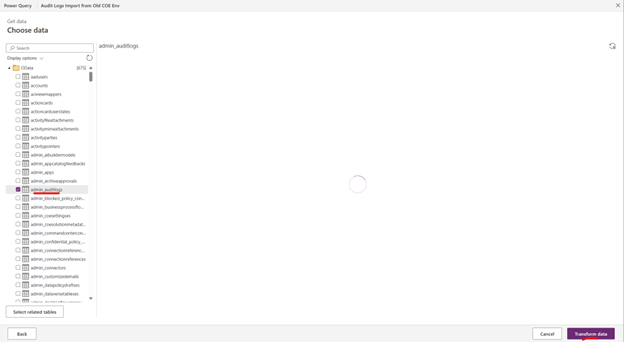
This will load all of the Dataverse tables from your other environment. Select the admin_auditlogs table and then choose Transform Data. Validate that you’ve selected the right table and select Next.
Step 8: Map Tables
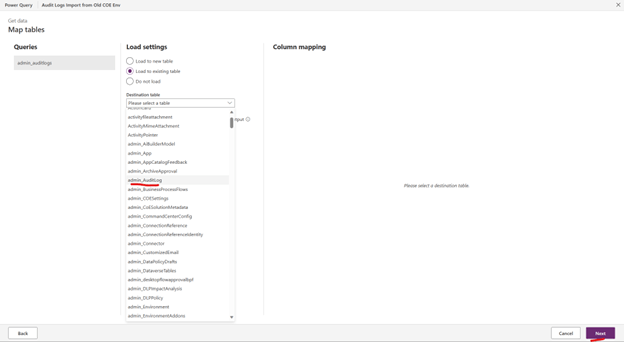
Now you’ll have a map tables option. Under Load settings, select Load to Existing Table. Under destination table select admin_auditlog. This ensures that you’re selecting the new/empty audit log table from your new environment which you’ll send information over to. Then select Auto Map and Next.
Step 9: Publish Dataflow
Finally, select Publish. This will publish your data flow and start the refresh process, copying all your audit log information from your old CoE instance environment to your new one.
By following these steps, you can ensure a smooth migration of your audit logs from one CoE installation to another, preserving valuable data and maintaining operational efficiency in your new environment.
If you need more details or assistance on how to create these reports or implement governance strategies, don’t hesitate to get in touch with your Business Applications Cloud Solution Architects.

Leave a comment